

How it works
Activating a pack downloads it
Mazes, Sudoku and Tic Tac Toe come as packs from PayPlaxe. AVAILABLE asks you to confirm with Activate, then downloads the pack's puzzles to the device and switches the pack on.
Activation applies to the whole account
Your activated packs are stored on your PayPlaxe account, not on one device. Other Clover devices apply the change the next time the app is opened: they download a pack that was activated elsewhere, and delete a pack that was switched off.
Printing is random by default
With the setting on, the app picks one of your activated packs at random, then a puzzle inside that pack. A pack that holds one puzzle therefore comes up as often as a pack of eleven, and the same puzzle can appear again.
Or you pick the puzzle
Inside a pack every puzzle has its own PRINT button, and tapping the card opens the puzzle full size with a green print button. Both download the puzzle again, so they need an internet connection.
Receipts get longer
A puzzle is a picture, so expect more paper per sale when random printing is on.
What it does
Ready-made packs
Mazes with 11 puzzles, Sudoku and Tic Tac Toe. A pack is activated with its AVAILABLE button and a confirmation.
Preview before printing
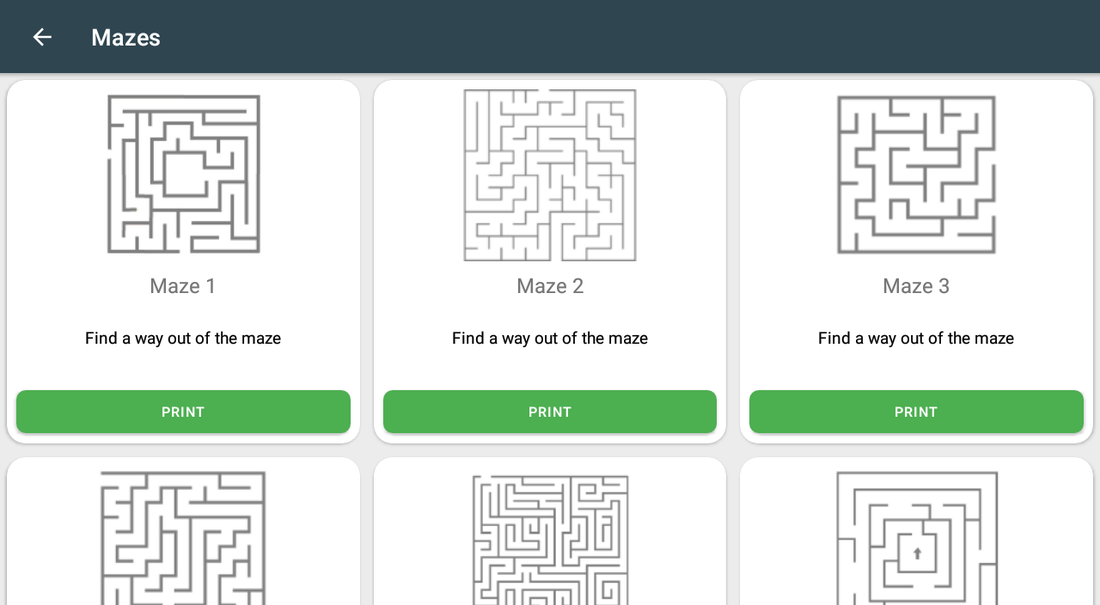
Every puzzle is shown as a picture. The thumbnails in the pack list are faded; tap a puzzle to see it full size.
Random printing
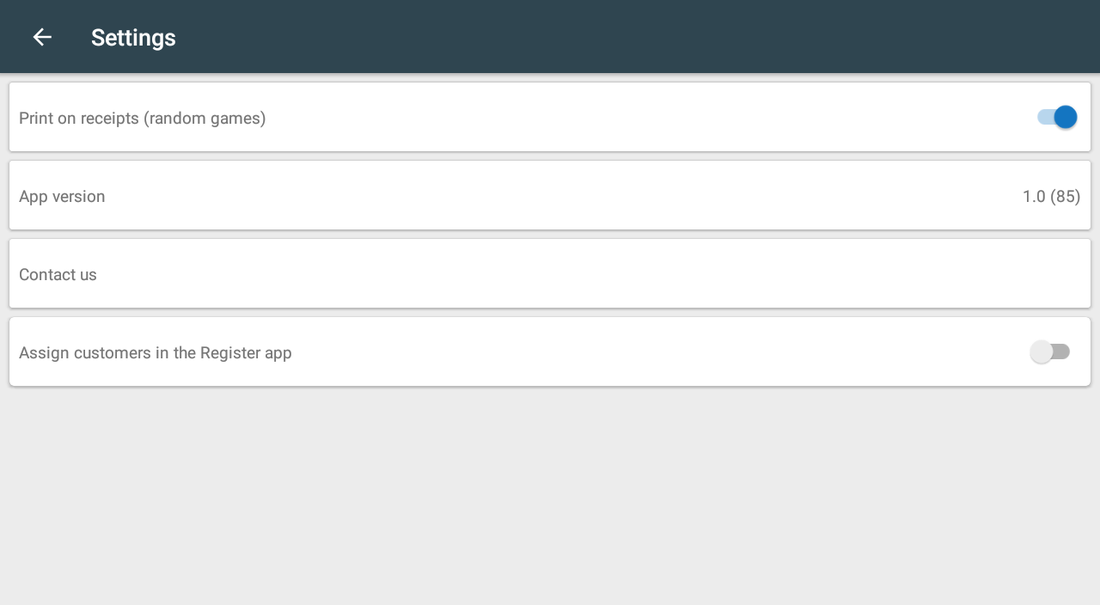
Print on receipts (random games) puts a randomly chosen puzzle on each receipt.
Print on demand
Each puzzle has its own PRINT button when you want a specific one. Printing on demand needs an internet connection.
Customer assignment
Assign customers in the Register app asks the cashier to attach a Clover customer to the order when the first item is rung up. The customer is written onto the Clover order itself. It does not change which puzzle is printed.
One switch
Turn printing off without losing the packs you activated.
Price & installation
How to install
- Open the Clover App Market — on the device, or at clover.com/appmarket in your web dashboard.
- Find the app by name, or open its direct link from the button above.
- Tap Connect / Install and accept the permissions the app requests.
- The 30-day free trial starts automatically. The subscription then appears on your monthly Clover invoice.
- Open the app on the Clover device and sign in with a Manager or Admin employee account to configure it.
- To cancel later, uninstall the app from the App Market — the steps are right below.
How to cancel the subscription
Cancelling means uninstalling the app — there is no separate billing screen.
- Open the App Market — on the Clover device, or in the web dashboard.
- Open My Apps. Every app you pay for is listed there with its monthly fee.
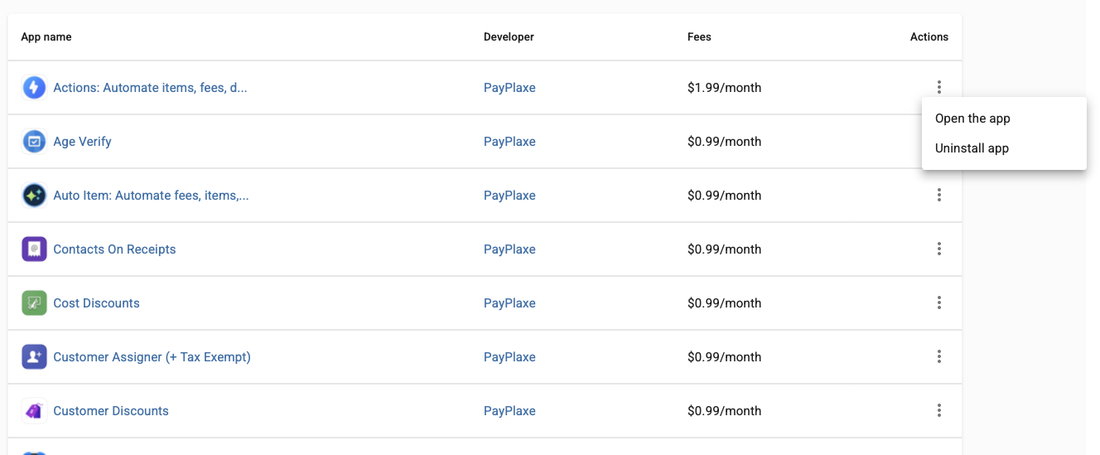
- Tap the ⋮ button on the app's row and choose Uninstall app.
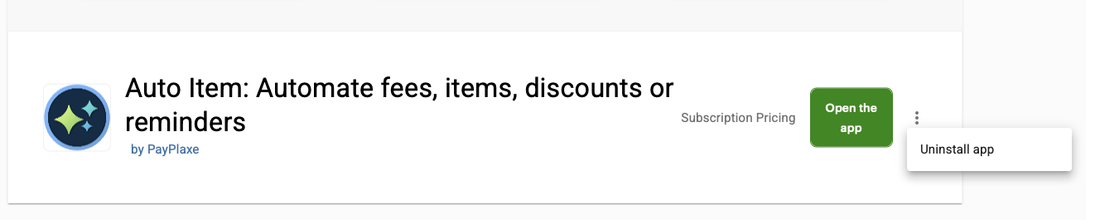
- The app's own page works too: ⋮ next to the green Open the app button → Uninstall app.
- Confirm. The subscription stops there and then — the app is off your next Clover invoice.
Install and cancel any time from the Clover App Market.
First setup
Do this once, in this order. It takes a few minutes and the app is then ready for the shift.
- Open Games On Receipts; the packs are listed with a short description.
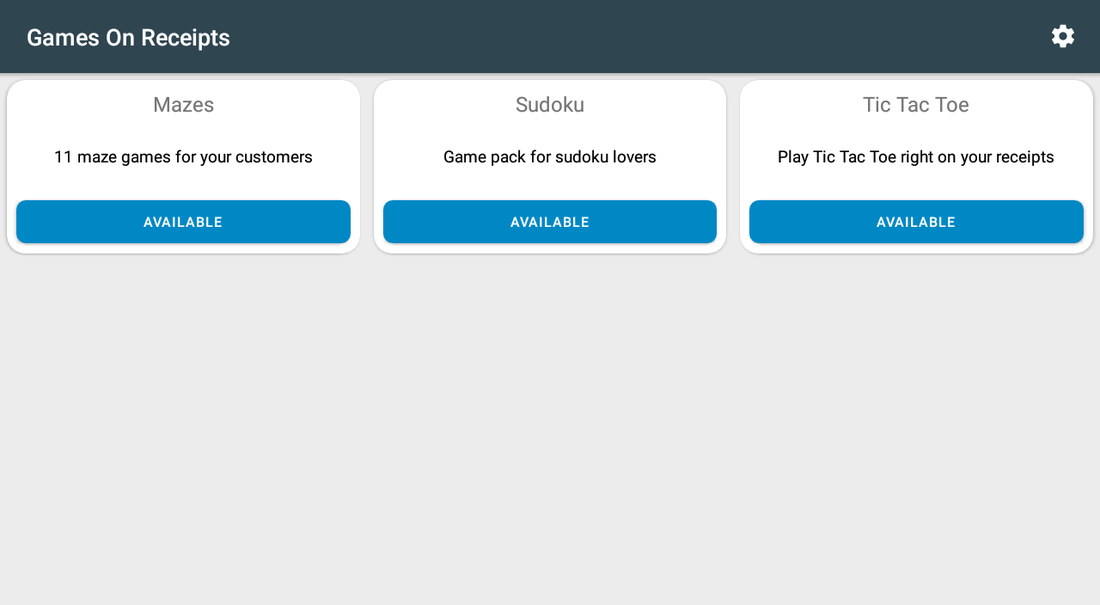
- Tap AVAILABLE on a pack and confirm with Activate — the app downloads that pack's puzzles.
- Open a pack to see its puzzles. Tap a puzzle to see it full size.
- Open Settings and check that Print on receipts (random games) is on — it is on by default.
- Serve a customer and check the printed receipt.
Setup scenarios
Each scenario is a complete configuration — follow the steps in order.
1Print a random puzzle on every receipt
The simplest setup: turn it on and the receipts do the rest.
- Open Games On Receipts — the packs Mazes, Sudoku and Tic Tac Toe are listed.
- Tap AVAILABLE on a pack and confirm with Activate — the app downloads that pack's puzzles.
- Open a pack to see the individual puzzles and their previews.
- Open Settings and check that Print on receipts (random games) is on — it is on by default.
- Serve a customer and check the printed receipt.
2Print a puzzle on request
A family with children at the table, or a customer who has to wait.
- Turn Print on receipts (random games) off in Settings if you do not want it on every receipt.
- Open the pack you want, for example Mazes.
- Find the puzzle in the list — the thumbnails are faded; tap one to see it full size.
- Tap its PRINT button — a Printing.. message appears while the puzzle is downloaded and sent to the receipt printer.
- Hand it over with the order.
3A campaign built around one pack
A loyalty or kids' club promotion that uses a single pack of puzzles.
- Activate the pack you use for the campaign.
- Print manually, or leave random printing on for the duration of the campaign.
- To record the customer on each order, open Settings and turn on Assign customers in the Register app.
- When the first item is rung up, a customer search opens — pick the customer to attach them to the order. This does not change which puzzle is printed.
- When the campaign is over, tap the pack's green ACTIVATED button and confirm Delete. This deletes the downloaded puzzles from the device; they download again if you activate the pack later.
Reference
Screens and settings
Every screen of the app and what each setting does. (4)
Screens and settings
Every screen of the app and what each setting does. (4)
Packs
| Setting | What it does |
|---|---|
| Pack card | The pack name and what it contains, e.g. 11 maze games for your customers. |
| AVAILABLE | Downloads the pack's puzzles and activates it. A dialog asks you to confirm with Activate. |
| ACTIVATED | The green state: the pack is on. Tap it to switch the pack off — a dialog asks you to confirm Delete, and the downloaded puzzles are removed from the device. Activating the pack again downloads them back. |
| Gear | Opens Settings. |
Inside a pack
| Setting | What it does |
|---|---|
| Puzzle preview | A faded thumbnail of the puzzle. Tap the card to open the puzzle full size. |
| Puzzle name and hint | E.g. Maze 1 · Find a way out of the maze. |
| Prints this specific puzzle right now. A Printing.. message appears while the puzzle is downloaded, so an internet connection is needed. |
Puzzle view
| Setting | What it does |
|---|---|
| Full-size puzzle | Opens when you tap a puzzle card. This view shows the puzzle as it will be printed; the thumbnails in the list are faded. |
| Puzzle name | The name of the puzzle, on the white bar under the picture. |
| Green print button | Prints this puzzle. A Printing.. message appears while it is downloaded and sent to the receipt printer. |
Settings
| Setting | What it does |
|---|---|
| Print on receipts (random games) | Master switch for random printing. Keep at least one pack activated while it is on; if you want no puzzles at all, turn the switch off instead of leaving it on with no pack activated. |
| App version | The installed version. |
| Contact us | Shows PayPlaxe support contacts — email, WhatsApp/SMS and a QR code. |
| Assign customers in the Register app | When on, a customer search opens once per order after the first item is added. The customer you pick is written onto the Clover order, so the order shows that customer everywhere in Clover. It has no effect on which puzzle is printed. If you also run the Customer Assigner app, leave this switch off — otherwise both apps ask for the customer on the same order. |
Screenshots taken from the running app on a Clover device. The apps’ interface language is English. Click a screenshot to enlarge.
Everyday use
What the cashier does after the app is configured.
- With random printing on, nothing to do — puzzles appear on receipts by themselves.
- To hand a specific puzzle to a waiting family, open the pack and tap its PRINT button. This needs an internet connection.
- Turn the switch off during busy hours if receipt length matters.
Troubleshooting
Symptom on the left, what to do on the right.
| Symptom | What to do |
|---|---|
| No puzzle is printed. | Print on receipts (random games) is off, or no pack is activated. Random printing needs at least one activated pack — activate one, or turn the switch off if you do not want puzzles. |
| Receipts became too long. | Activate fewer packs, or switch random printing off and print on demand only. |
| The same puzzle repeats. | The app picks one of your activated packs at random, then a puzzle inside it, so a pack with few puzzles repeats often. Activate a pack with more puzzles, such as Mazes, or switch off a one-puzzle pack such as Tic Tac Toe. |
| The pack list is empty. | The app needs an internet connection every time it loads the packs. Check the device's connection and open the app again. |
| The app's dialog never appears on the payment screen; Clover shows "Customer is choosing payment method". | Open the Clover Setup app → Payments and uncheck Automatically take payment on Connected Device, so payment is taken on the primary device. |
| Settings cannot be opened or changed. | Sign in with an employee whose Clover role is Manager or Admin. Some apps also have their own Restrict access switch that locks the configuration. |
| The app works erratically, or stops reacting after the device has been idle. | Turn off Battery Saver in the device's Android settings and keep the device online. |
| A change made on one device is not visible on another. | Settings sync through the cloud; give it a minute and make sure both devices have a network connection. |