

How it works
The app counts, not the cashier
It watches how many units of your selected items are in the order and applies the deal once the threshold is reached. A weighed line counts as its weight, so 2.5 lb counts as 2.5 towards the threshold.
You choose how counting works
Each product separately counts identical items only. All selected items combined lets a mix reach the threshold.
You choose who gets the discount
Buy N or more, all get the discount discounts every qualifying unit. For every N bought, 1 gets the discount is the three-for-two shape.
An optional cap
The per-order limit counts order lines, not units. It covers the whole order only with All selected items combined (any mix); with Each product separately (same item only) it applies to each product on its own.
A schedule like any promotion
Dates and a daily time window, or no date limits at all. Weekdays apply in both cases — a day that is not ticked never runs.
The rules live in your account
Discounts are stored in your PayPlaxe account under your Clover merchant, not on one device. The Clover app applies them to orders; the same list opens on every Clover device of the store and in a browser. The sync icon reloads the list from the server.
What it does
Items or categories
The deal applies to selected items or to whole categories.
Threshold quantity
Buy this many to qualify sets when the discount starts. For an item sold by weight the number is read in those units — 3 means 3 lb, not three separate weighings.
Two discount modes
Buy N or more, all get the discount, or for every N bought, 1 gets the discount. On goods sold by weight the second mode discounts only whole lines that fit the amount earned, so a single heavy weighing can get nothing.
Counting rules
Count each product separately or all selected items combined.
Per-order limit
Limit discounted items per order (BETA) caps how many order lines the deal may discount — for this cap alone, a weighed line counts as one however much it weighs. With All selected items combined (any mix) the cap covers the whole order; with Each product separately (same item only) it applies to each product on its own, so a basket with several qualifying products can exceed it.
Items sold by weight
For a per-lb or per-kg item the threshold is measured in those units: Buy this many to qualify = 3 means 3 lb, and one 3 lb weighing meets it on its own. The rule that a line counts as one applies only to Limit discounted items per order.
Amount or percentage
A fixed amount or a percentage off each qualifying item.
Schedule
Dates and times or no date limits, plus weekdays. An unticked weekday never runs, even with No date limits.
Restrictions
Decide which employees may add or edit discounts on the Clover device. Settings → Restrictions opens for managers and admins only, and the restrictions are not applied in the browser.
Web version
quantitydiscounts.payplaxe.com opens the same discount list and the same editor in a browser. It is the same app you already have on Clover — the setup side of it, with nothing extra to buy. Sign in with Login via Clover: your Clover account, no password and no QR code. It edits the rules only — the discount itself is put on the order by the Clover device at the register.
Price & installation
How to install
- Open the Clover App Market — on the device, or at clover.com/appmarket in your web dashboard.
- Find the app by name, or open its direct link from the button above.
- Tap Connect / Install and accept the permissions the app requests.
- The 30-day free trial starts automatically. The subscription then appears on your monthly Clover invoice.
- Open the app on the Clover device and sign in with a Manager or Admin employee account to configure it.
- To cancel later, uninstall the app from the App Market — the steps are right below.
How to cancel the subscription
Cancelling means uninstalling the app — there is no separate billing screen.
- Open the App Market — on the Clover device, or in the web dashboard.
- Open My Apps. Every app you pay for is listed there with its monthly fee.
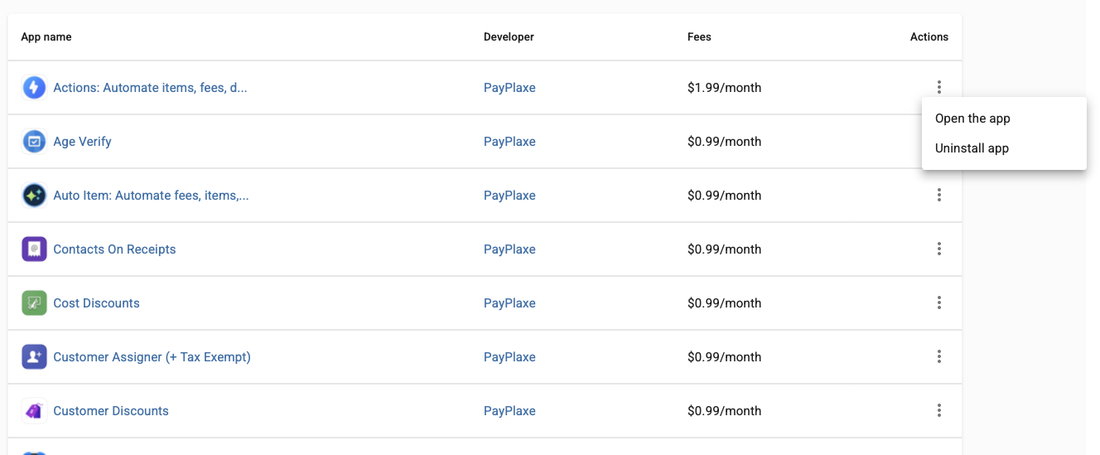
- Tap the ⋮ button on the app's row and choose Uninstall app.
- The app's own page works too: ⋮ next to the green Open the app button → Uninstall app.
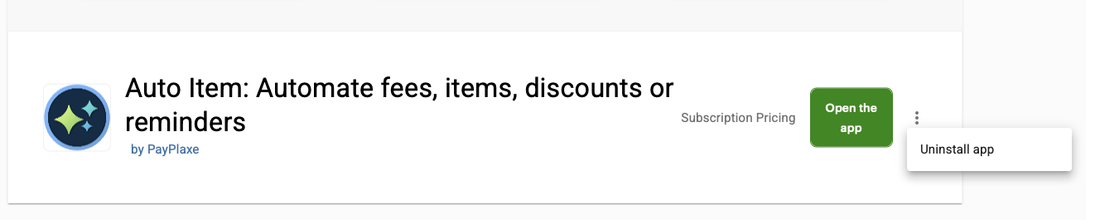
- Confirm. The subscription stops there and then — the app is off your next Clover invoice.
Install and cancel any time from the Clover App Market.
First setup
Do this once, in this order. It takes a few minutes and the app is then ready for the shift.
- Open Quantity Discounts.The list shows each deal with its period, weekdays and status.
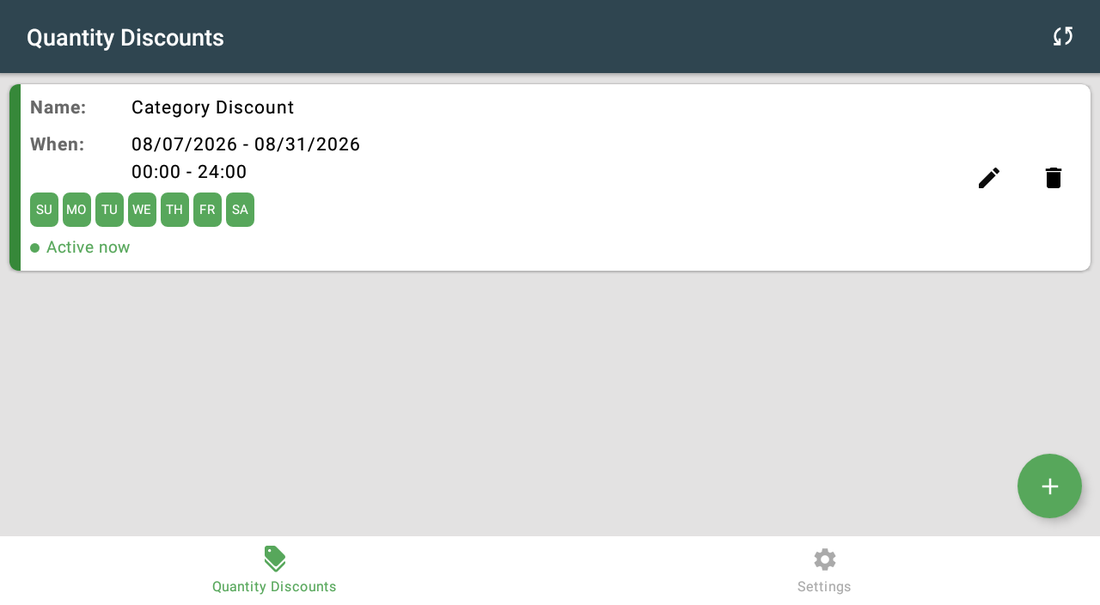
- Tap + to create a discount.
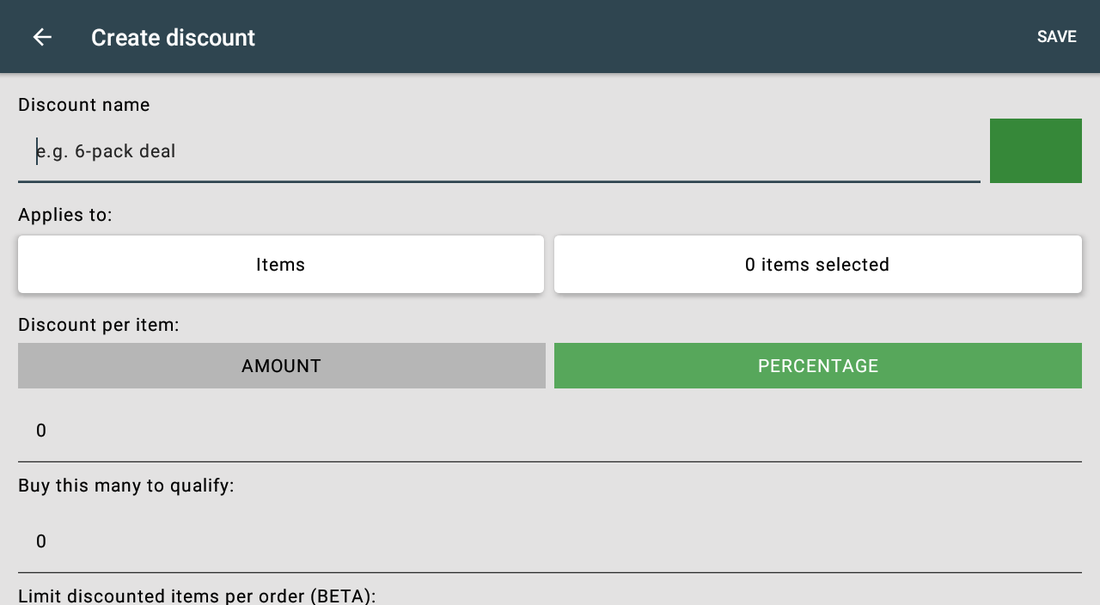
- Enter a name (e.g. 6-pack deal), pick a colour, then set Applies to = Items or Categories and select them.
- Set Discount per item — AMOUNT or PERCENTAGE — and the value taken off each qualifying unit.
- Set Buy this many to qualify, then choose How items are counted and How the discount works.For an item sold by weight the threshold is in lb or kg, not in pieces.
- Optionally open Limit discounted items per order (BETA) and set a cap.
- Choose Set dates and times or No date limits, tick the weekdays and save.
- Build a test basket at, just below and just above the threshold before opening the store.
Setup scenarios
Each scenario is a complete configuration — follow the steps in order.
1Six-pack deal on a single product
Buy six of the same drink, get a discount on every one of them.
- Open Quantity Discounts → Quantity Discounts and tap +.
- Name it 6-pack deal and pick a colour.
- Applies to = Items, then select the drink.
- Discount per item = Amount or Percentage, and enter the value.
- Buy this many to qualify = 6.
- How items are counted = Each product separately (same item only).
- How the discount works = Buy 6 or more, all get the discount, then set the schedule and save.
2Three for the price of two, across a category
Any mix of products from one category counts towards the threshold. The app does not pick the cheapest unit — with a 100% discount the free unit can be any qualifying line, so use this only where the products are priced alike.
- Create a discount and set Applies to = Categories, then select the category.
- Set Discount per item = Percentage 100 so the free unit costs nothing.
- Buy this many to qualify = 3.
- How items are counted = All selected items combined (any mix).
- How the discount works = For every 3 bought, 1 gets the discount.
- Set the weekdays and time window and save.
3Bulk pricing with a cap
Encourage volume without letting one customer clear the shelf at the discounted price.
- Create the discount with your items and threshold as usual.
- Set How items are counted = All selected items combined (any mix) — this is the only counting mode where the cap covers the whole order.
- Open Limit discounted items per order (BETA) and choose Set a limit.
- Enter the maximum number of discounted lines per order in Max discounted items. Each line on the ticket counts as one, so a weighed line counts as one however much it weighs.
- Set the date range if the offer is temporary; otherwise choose No date limits.
- In Settings → Restrictions, limit who may edit discounts. The screen opens titled Permissions, and only managers and admins can open it.
Reference
Screens and settings
Every screen of the app and what each setting does. (6)
Screens and settings
Every screen of the app and what each setting does. (6)
Discounts list
| Setting | What it does |
|---|---|
| Name / When | The deal name and its schedule; Endless means no date limits. |
| Weekday chips | The days the deal runs on. |
| Status | Active now · Ended · Disabled · No days selected · Starts in … . Disabled cannot be changed in the app or in the browser — there is no on/off switch for a deal; ask support to clear it. |
| Sync icon | Reloads the discount list from the PayPlaxe server. |
| + button | Creates a new deal. |
Discount editor
| Setting | What it does |
|---|---|
| Discount name | Required, e.g. 6-pack deal. |
| Applies to | Items or Categories, then the selection with its count. |
| Discount per item | AMOUNT off each item, or PERCENTAGE off each item. |
| Buy this many to qualify | The threshold quantity, 0 or more. 0 means no minimum — every selected item is discounted on every order, so enter the real threshold before saving. For an item sold by weight the threshold is read in those units: 3 means 3 lb, and a single 3 lb weighing meets it. |
| Limit discounted items per order (BETA) | No limit or Set a limit with a maximum per order (at least 1). |
| How items are counted | Each product separately (same item only) or All selected items combined (any mix). |
| How the discount works | Buy N or more, all get the discount or For every N bought, 1 gets the discount. |
| When it runs | Set dates and times (From / To date and daily time window) or No date limits. The weekday chips apply to both — a day that is not ticked is a day the deal does not run, even with No date limits. |
Select an item
| Setting | What it does |
|---|---|
| Where | Opens from Applies to = Items in the editor. The title bar reads Select an item. |
| Category panel | Your Clover categories down the left. A badge on a category shows how many of its items are selected. |
| Search… | Filters the items of the open category by name. |
| Select all / Deselect all | Selects or clears every item listed in the open category. |
| Barcode | Scanning a barcode finds that item in the list. |
| CONFIRM | Returns the selection to the editor, where the count next to Applies to updates. |
Select categories
| Setting | What it does |
|---|---|
| Where | Opens from Applies to = Categories in the editor. |
| Rows | One row per Clover category, with Name:, Items: — how many items it holds — and a tick box. |
| SAVE | Returns the ticked categories to the editor. This screen has no search field. |
Settings
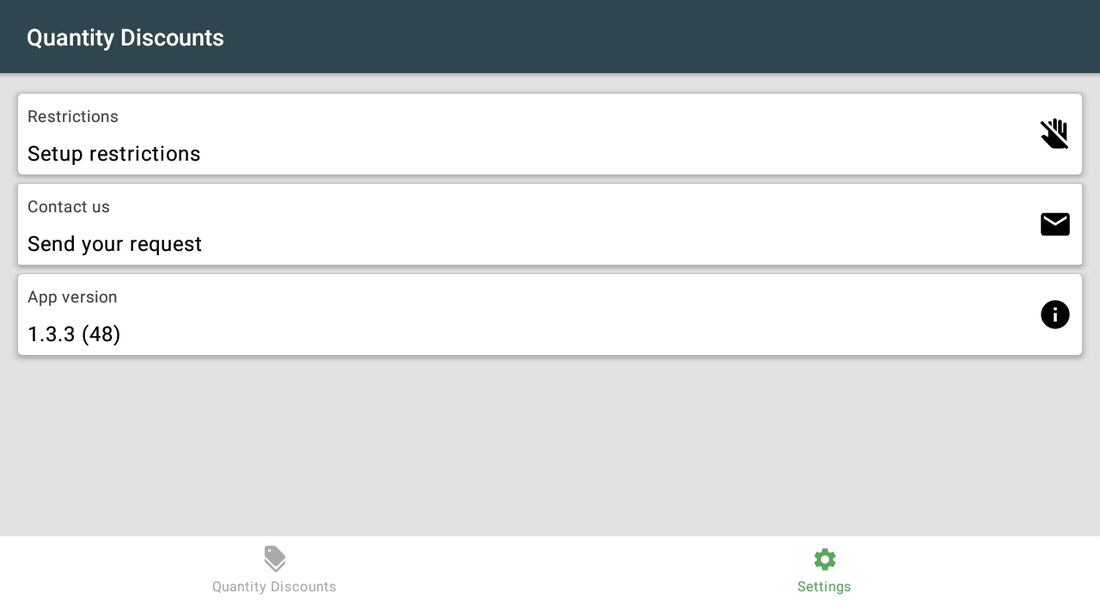
| Setting | What it does |
|---|---|
| Restrictions | Per employee: Add/edit discounts. The screen opens titled Permissions, and only managers and admins can open it — another role gets Only managers and admins can configure it. Admins cannot be restricted and a manager cannot restrict another manager. The restrictions cover the Clover app only. |
| Contact us | Support request from inside the app. |
| App version | The installed version. |
Web version
The same discounts in a browser, on a computer, a tablet or a phone.
| Setting | What it does |
|---|---|
| Where it opens | Any browser. Nothing to install. |
| Login via Clover | The only sign-in: your Clover account, no password and no QR code. Quantity Discounts must have been opened on the Clover device at least once, otherwise the page answers Open Quantity Discounts on your Clover POS, then try again. |
| Menu | Two entries: Quantity Discounts (the list) and Settings. |
| The list | The same cards, colours, weekday chips and statuses, with an edit and a delete icon on each row and a + button. There is no sync icon — the list reloads when the screen opens. |
| The + button | Asks for a name and saves the new discount on the server straight away, before the form is filled in; on the Clover device nothing is stored until you save. A delete takes effect at once and cannot be undone. |
| Settings | Merchant ID (read-only), Contact us and App version. There is no Restrictions screen, and restrictions set on the Clover device are not applied in the browser. |
| Not in the browser | Everything at the register. The browser never adds or removes a discount on an order — the Clover app on the device does that. |
Screenshots taken from the running app on a Clover device. The apps’ interface language is English. Click a screenshot to enlarge.
Everyday use
What the cashier does after the app is configured.
- Nothing to press — the deal applies itself once the basket reaches the threshold.
- The discount appears on the order lines, so the customer sees it before paying.
- If a limit is set, lines beyond the cap are charged at full price. The cap counts order lines, and it covers the whole order only when counting is All selected items combined (any mix).
- On goods sold by weight the threshold is counted in lb or kg: one 3 lb weighing can trigger a deal set to 3, and with For every N bought, 1 gets the discount a heavy line can get no discount at all.
- Outside the schedule the deal simply does not apply; the card in the app shows why.
Troubleshooting
Symptom on the left, what to do on the right.
| Symptom | What to do |
|---|---|
| The deal does not trigger with a mixed basket. | Set How items are counted to All selected items combined (any mix). |
| Every unit is discounted when only one should be. | Switch How the discount works to For every N bought, 1 gets the discount. |
| A weighed item gets no discount with For every N bought, 1 gets the discount. | That mode discounts only whole lines that fit the amount earned, lightest line first. With Buy this many to qualify = 3, a single 9 lb line gets nothing, and 8 lb + 1 lb discounts only the 1 lb line. For goods sold by weight use Buy N or more, all get the discount with a percentage. |
| Enter a discount name or Discount limit must be at least 1 when saving. | The name is empty, or Set a limit is chosen with Max discounted items left at 0. Fill the name; enter 1 or more, or switch back to No limit. |
| Start time must be before end time. | The daily window is reversed. Set the start earlier than the end, or use No date limits. |
| Start date must be before end date. | The From: date is later than the To: date. Correct the dates, or choose No date limits. |
| Settings → Restrictions will not open. | Only managers and admins can configure it means the employee signed in on the device has another role — sign in as a manager or an admin. Reinstall the app to enable this feature means the app is missing the Clover employee permission; reinstall Quantity Discounts from the Clover App Market. |
| New items are missing from the picker. | Close and reopen the picker — it reads your Clover inventory each time it opens. If the item still does not appear, check that it is saved in Clover Inventory; a brand-new item can take a moment to publish to the device. |
| The app's dialog never appears on the payment screen; Clover shows "Customer is choosing payment method". | Open the Clover Setup app → Payments and uncheck Automatically take payment on Connected Device, so payment is taken on the primary device. |
| Settings cannot be opened or changed. | Sign in with an employee whose Clover role is Manager or Admin. Some apps also have their own Restrict access switch that locks the configuration. |
| The app works erratically, or stops reacting after the device has been idle. | Turn off Battery Saver in the device's Android settings and keep the device online. |
| A change made on one device is not visible on another. | Settings sync through the cloud; give it a minute and make sure both devices have a network connection. |