

How it works
A pack links a case to its contents
You tell the app which item is the case, which item is inside, and how many units it holds. The list lives on PayPlaxe's server, and each Clover device copies it when the app is opened there.
The question appears at the register
When the case item is added to an order — by scanner, by tapping it in Register, or from a category — the app asks whether to unpack it.
The order and the stock are rewritten
Tap Unpack and the app asks How many items add to the order? (N max), pre-filled with the whole pack. After you confirm the count, the case line is replaced by that many single items, and Clover Inventory loses 1 case and gains a full pack of singles.
Everything is logged
The Reports tab records the date and time, the case item, the pack size that was opened, and the order it happened on.
What it does
Pack definitions
For each container item you set what is inside it and how many units it holds. Each container item can have one pack definition. The list is stored by PayPlaxe and copied to a Clover device when the app is opened there.
Unpack prompt
When the pack is added to an order — scanned, tapped in Register, or picked from a category — the app asks Do you want to unpack <item>? N items of <item> will be added to the order by the app. Tap Unpack and a second question appears — How many items add to the order? (N max) — already filled in with the whole pack. Confirm it and the single items replace the pack on the order.
Stock is moved in Clover
Unpacking takes 1 off the case item and adds the whole pack size to the single item in Clover Inventory.
Reports
The Reports tab lists every unpack with its date, the case item and the pack size that was opened. Share turns the list into an Excel file you can download from a QR code or send by e-mail.
One switch to pause it
App enabled turns the behaviour off on that Clover device without deleting your packs.
Price & installation
How to install
- Open the Clover App Market — on the device, or at clover.com/appmarket in your web dashboard.
- Find the app by name, or open its direct link from the button above.
- Tap Connect / Install and accept the permissions the app requests.
- The 30-day free trial starts automatically. The subscription then appears on your monthly Clover invoice.
- Open the app on the Clover device and sign in with a Manager or Admin employee account to configure it.
- To cancel later, uninstall the app from the App Market — the steps are right below.
How to cancel the subscription
Cancelling means uninstalling the app — there is no separate billing screen.
- Open the App Market — on the Clover device, or in the web dashboard.
- Open My Apps. Every app you pay for is listed there with its monthly fee.
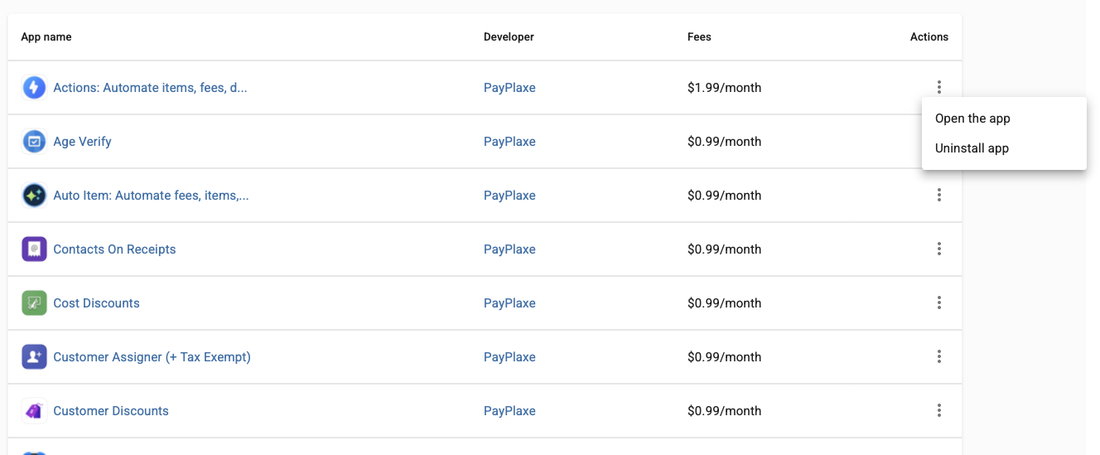
- Tap the ⋮ button on the app's row and choose Uninstall app.
- The app's own page works too: ⋮ next to the green Open the app button → Uninstall app.
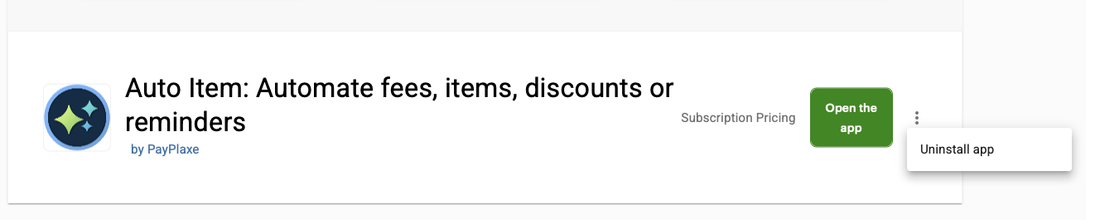
- Confirm. The subscription stops there and then — the app is off your next Clover invoice.
Install and cancel any time from the Clover App Market.
First setup
Do this once, in this order. It takes a few minutes and the app is then ready for the shift.
- Make sure both items exist in Clover Inventory: the case and the single unit.
- Open Unpacking — the Packs tab lists existing packs.
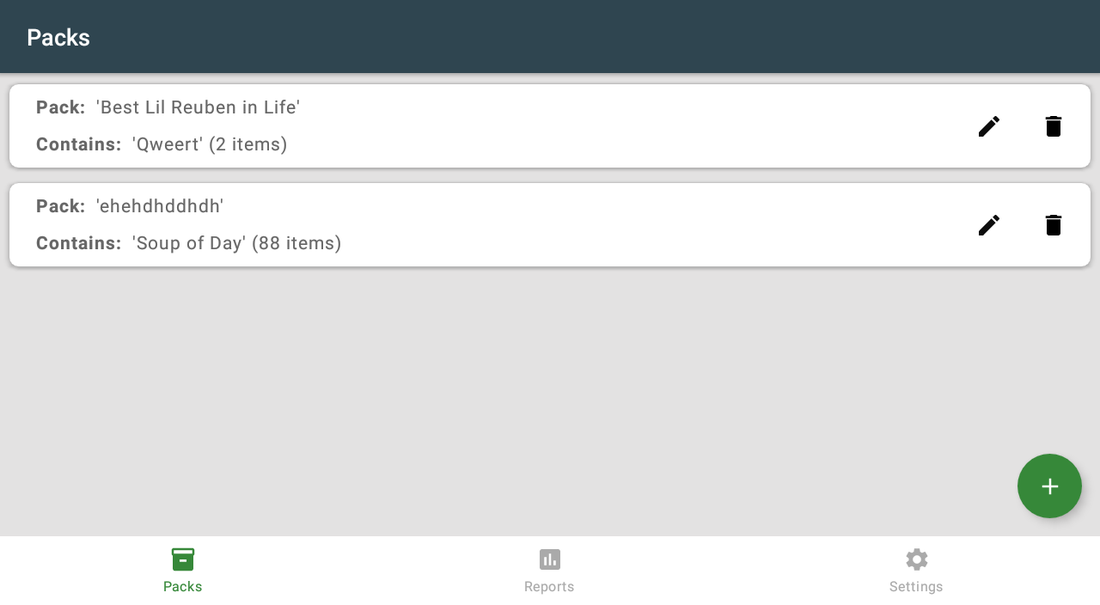
- Tap + to add a pack.
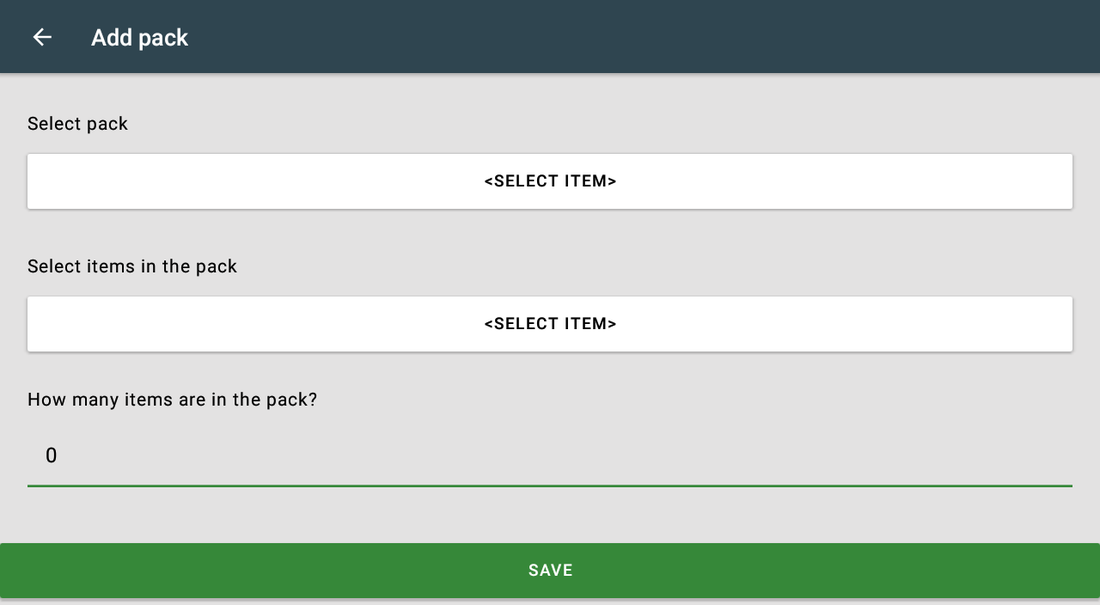
- Select pack — the Select an item screen opens. Choose the case item by category, by Search…, or by scanning its barcode.
- Select items in the pack — choose the single item the same way. If that item is priced per unit in Clover, the app asks How many '<unit>' will be in one item? straight away.
- How many items are in the pack? — enter the count and save. One pack definition per case item.
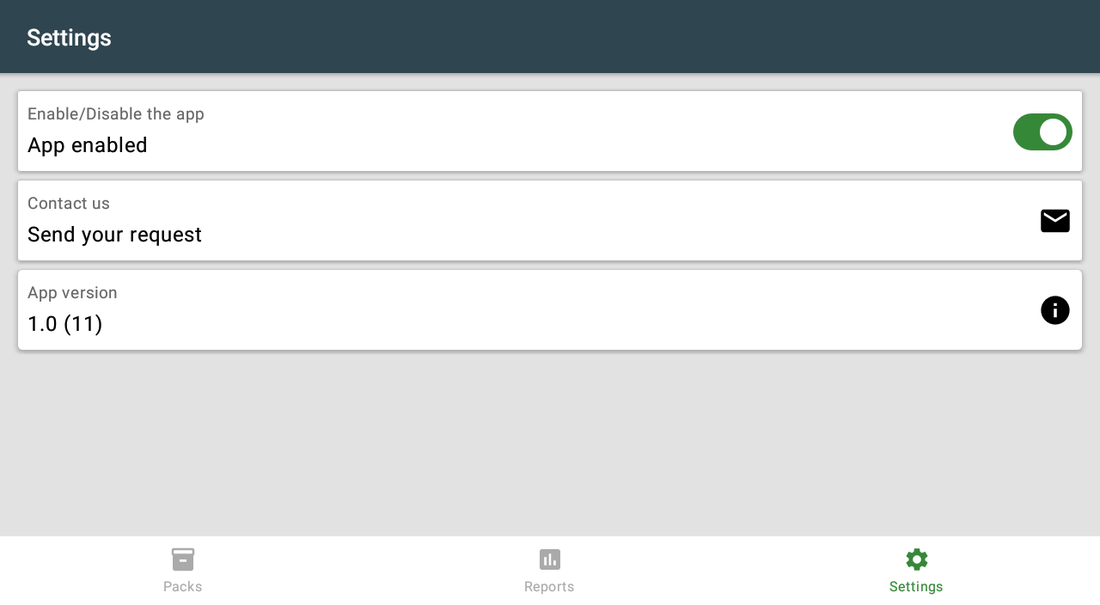
- Check Settings: App enabled must be on. It is a per-device switch, so check it on every Clover device.
Setup scenarios
Each scenario is a complete configuration — follow the steps in order.
1A case of 24 bottles sold as singles
Stock arrives by the case, customers buy one bottle.
- Make sure both items exist in Clover Inventory: the case and the single bottle.
- Open Unpacking → Packs and tap +.
- Tap Select pack. The Select an item screen opens — find the case item by category, by Search…, or by scanning its barcode.
- Tap Select items in the pack and choose the single bottle the same way.
- In How many items are in the pack? enter 24, then save.
- At the register, add the case to the order — scanning it is one way, tapping it in Register is another. Tap Unpack, confirm the pre-filled 24 in How many items add to the order? (24 max), and 24 singles replace the case on the order.
2Selling part of a pack
The customer wants six, not the whole case.
- Add the case to the order at the register and tap Unpack.
- In How many items add to the order? (N max) replace the pre-filled pack size with 6.
- Six single items are added and the case line is removed — that is what the customer pays for.
- The stock moves by the whole case, not by six: Clover Inventory takes 1 off the case item and adds the full pack size to the single item. The 18 bottles you did not sell stay in stock as singles.
- Check the Reports tab later to see how many cases were opened.
3Temporarily switch the prompt off
During a stock count or a promotion you may want the case to sell as a case.
- Open the Settings tab.
- Turn App enabled off — your pack definitions stay saved.
- Repeat it on every Clover device. The switch is stored on the device it is set on, so the prompt keeps appearing on the others.
- Sell the cases as normal Clover items, and turn the switch back on — again on each device — when you want unpacking.
Reference
Screens and settings
Every screen of the app and what each setting does. (5)
Screens and settings
Every screen of the app and what each setting does. (5)
Packs tab
| Setting | What it does |
|---|---|
| Pack row | Pack is the case item; Contains is the single item and its count. One definition per case item is used at the register. |
| Pencil / bin | Edit or delete the pack. Deleting a pack only stops the prompt for that case item; it does not change any stock. |
| + button | Creates a new pack. |
| Tabs | Packs · Reports · Settings. |
Add pack
| Setting | What it does |
|---|---|
| Select pack | The container item — the one that triggers the prompt when it is added to an order. Opens the Select an item screen. |
| Select items in the pack | The item the customer actually buys. Opens the same picker. |
| How many '<unit>' will be in one item? | Appears immediately after you pick the item inside, and only when that item is priced per unit in Clover. Your answer is the quantity added to the order for each unit sold. If the question is never answered, the app uses 1. |
| How many items are in the pack? | The pack size. At the register it is the pre-filled answer, and the maximum, in How many items add to the order? (N max). It is also the amount added to the single item's stock and the number written to the report. |
| SAVE | Stores the pack. It works right away on this device; on your other Clover devices open the Unpacking app once so they pick up the new pack. |
Select an item
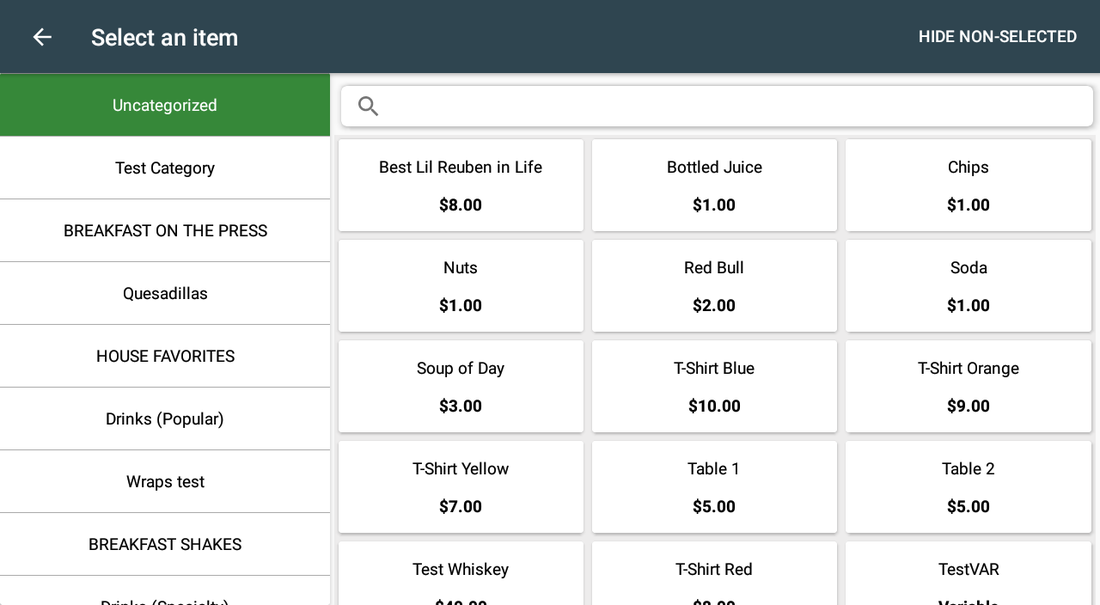
The picker that opens from Select pack and from Select items in the pack. Its title bar reads Select an item.
| Setting | What it does |
|---|---|
| Search… | Type part of the item name to filter the list. |
| Category list | The side panel lists your Clover categories and their subcategories. Tap one to narrow the list. |
| Scan a barcode | Scanning an item's barcode while this screen is open picks that item. This is the fastest way to select a case. |
| Tapping an item | Returns to Add pack with that item filled in. |
Reports tab
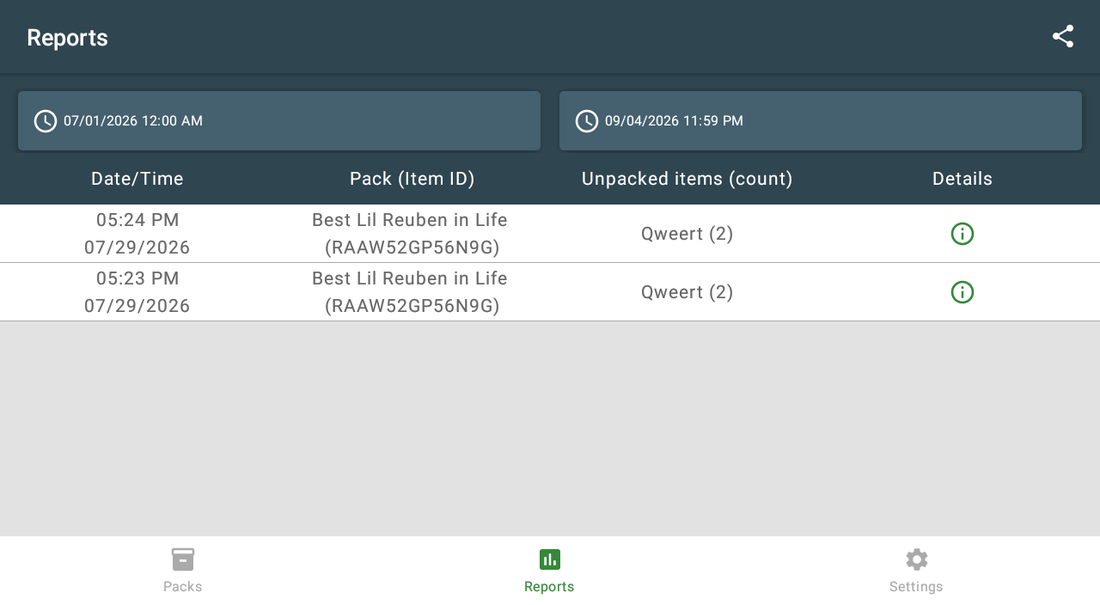
The tab opens showing today only. Every unpack is written here, one row per case opened.
| Setting | What it does |
|---|---|
| The two date cards | The left card is the start, the right card is the end. Each asks for a date and then a time. Both start set to today, so older unpacks are hidden until you move the start date back. |
| Date/Time | When the unpack was confirmed. |
| Pack (Item ID) | The case item that was opened, with its Clover item ID. |
| Unpacked items (count) | The item inside and the pack size that was opened — not the number of units put on the order. A 6-out-of-24 unpack is listed as 24. The report counts cases opened, not units sold. |
| Details | The info icon opens an Info box with the Order ID, the date, and both items with their IDs. Use the Order ID to find the sale in Clover. |
| Share | Asks Create report?, then shows Link generated! with a QR code. Opening the link downloads the chosen date range as an Excel file with the columns Date/Time, Pack (Item ID), Unpacked items (Count) and Order ID. |
| SEND VIA EMAIL | On the Link generated! dialog, asks Enter your email address — pre-filled with the merchant e-mail — and sends the same link. The dialog says access expires after one hour; the link actually stops working 24 hours after it was created. |
| Loaded last 1000 records | This message means the chosen range holds more rows than the tab shows. Only the most recent 1000 are listed; narrow the dates to see the rest. |
Settings
| Setting | What it does |
|---|---|
| App enabled | Off keeps your packs but stops the prompt. The setting is stored on this Clover device only, so turn it off on every device where you want the prompt silenced. |
| Contact us | Support request from the app. |
| App version | The installed version. |
Screenshots taken from the running app on a Clover device. The apps’ interface language is English. Click a screenshot to enlarge.
Everyday use
What the cashier does after the app is configured.
- Add the case to the order — scan it, tap it in Register, or pick it from a category.
- Answer the unpack question: tap Unpack to sell singles, decline to sell the whole case.
- In How many items add to the order? (N max) keep the pre-filled pack size or type how many units the customer is buying. It must be at least 1.
- Never confirm with an empty box or 0: the case line is still removed from the order and the stock still moves, leaving nothing to charge for. Tap Cancel instead.
- Check the Reports tab when you want to know how many cases were opened.
Troubleshooting
Symptom on the left, what to do on the right.
| Symptom | What to do |
|---|---|
| The prompt never appears. | App enabled is off on this device, the item added is not registered as a pack, or the pack was created on another device — open the Unpacking app on this device once so it picks up the pack list. |
| The wrong number of units is added. | Check what was typed in How many items add to the order? (N max) at the register; then open the pack and correct How many items are in the pack? if the pack size is wrong. If the item inside is priced per unit, also check the answer to How many '<unit>' will be in one item?. |
| Stock counts still look wrong. | Both the case and the single item need stock tracking enabled in Clover Inventory. Remember what a confirmed unpack does: 1 off the case item, a whole pack size onto the single item, whatever the cashier typed. The app does not undo that move if the order is voided afterwards — correct both items in Clover Inventory by hand. |
| The Reports tab looks empty. | It opens showing today only. Tap the left date card and pick an earlier start date and time. If the range holds more than 1000 rows you will see Loaded last 1000 records — narrow the range to reach the older ones. |
| The case vanished from the order and nothing was added. | The unpack was confirmed with an empty box or 0. Add the item back to the order by hand and decline the prompt, or unpack again with a count of at least 1. The stock move already happened, so fix both items in Clover Inventory. |
| The app's dialog never appears on the payment screen; Clover shows "Customer is choosing payment method". | Open the Clover Setup app → Payments and uncheck Automatically take payment on Connected Device, so payment is taken on the primary device. |
| Settings cannot be opened or changed. | Sign in with an employee whose Clover role is Manager or Admin. Some apps also have their own Restrict access switch that locks the configuration. |
| The app works erratically, or stops reacting after the device has been idle. | Turn off Battery Saver in the device's Android settings and keep the device online. |
| A change made on one device is not visible on another. | Settings sync through the cloud; give it a minute and make sure both devices have a network connection. |