
The app reads only the date of birth from the ID barcode. Its records hold the customer's age, the order ID, and the date and time, and nothing else from the ID.
In the examples the group's age is 21. The screenshots use sample IDs.
| Scan result | What the cashier sees | What to do |
|---|---|---|
| Old enough | DL scanned, and the date of birth fills in. After VERIFY, or at once with Autocomplete on, Verified appears and the prompt closes. | Continue the sale. Later items in the same order that need the same or a lower age do not ask again. |
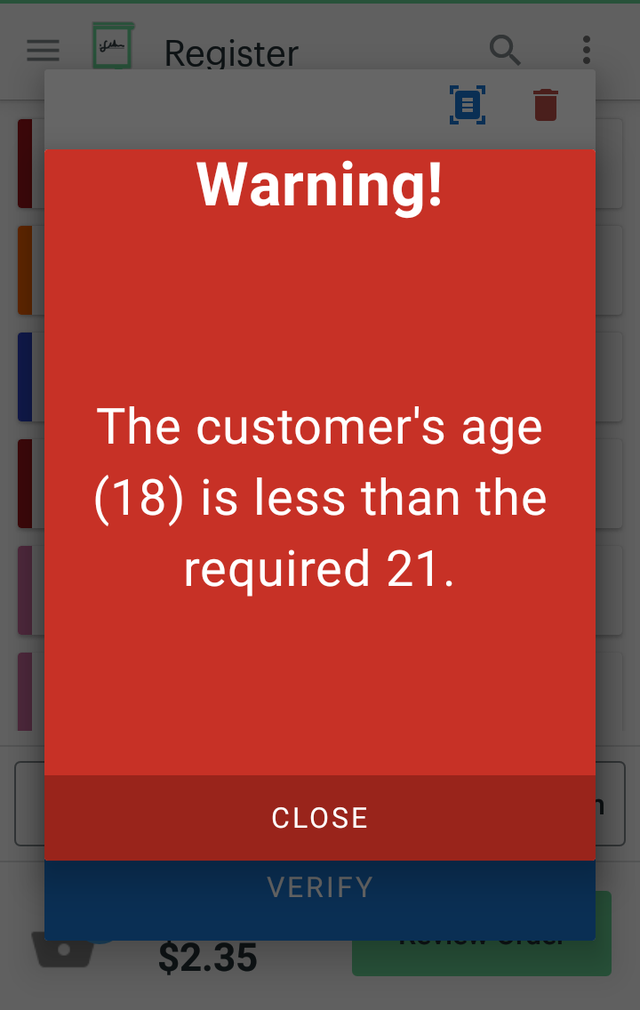
| Too young | The red Warning! panel with the customer's age and the required age. | Tap Close: the prompt comes back. Refuse the sale and remove the item with the red bin. |
| Can't be read | Nothing. The date of birth does not fill in. | Scan again, type the date of birth from the card on the keypad, or remove the item with the red bin. |
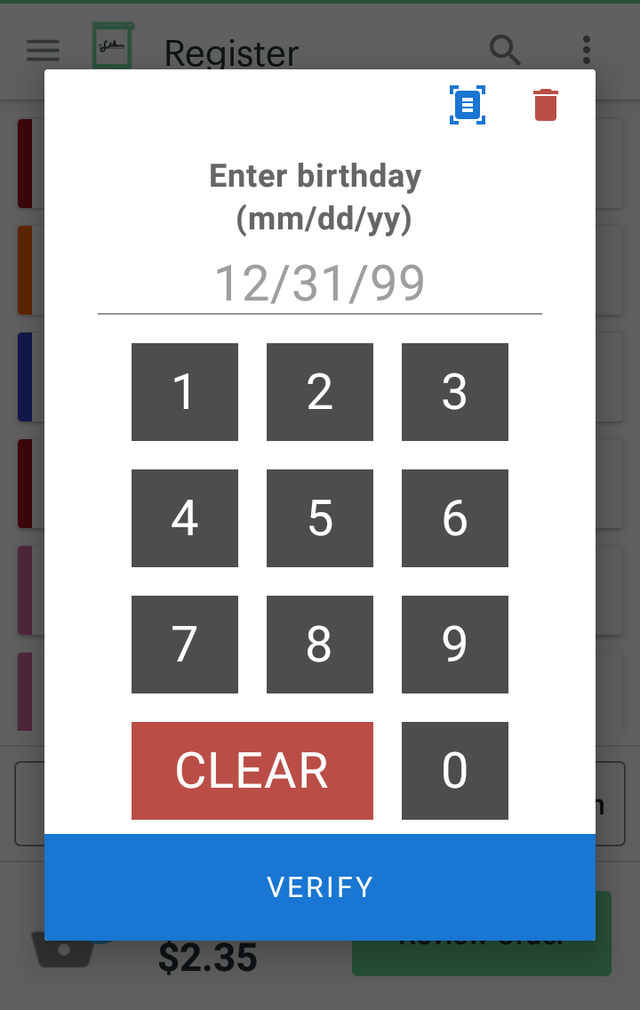
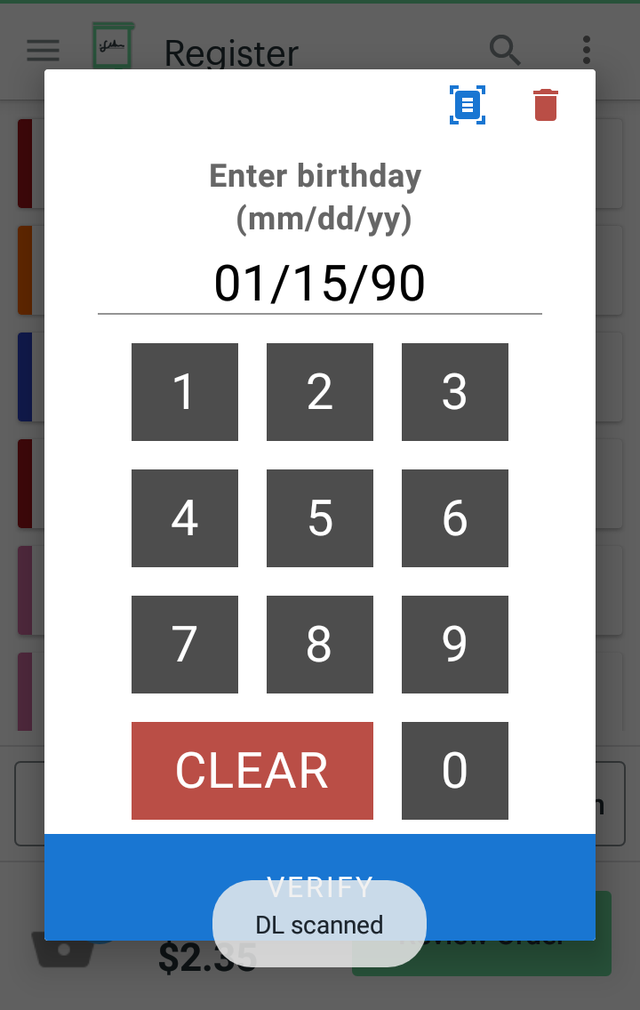
Use a 2D barcode scanner that reads PDF417, the barcode on the back of US and Canadian driver's licences and ID cards, including non-driver ID cards. Connect it to the Clover device by USB or Bluetooth. A 1D scanner cannot read an ID. Scan a licence once at the prompt to check your scanner. If the date does not fill in, send the scanner model to contact@payplaxe.com.
With Allow employees to skip age verification off, the prompt has no SKIP button, and Back or a tap outside the prompt does not close it. The prompt closes after a date of birth that meets the group's age is verified, or when the item is removed with the red bin. The keypad is always on the prompt, so the cashier can type the date of birth instead of scanning. The keypad cannot be turned off.
Set up the check for scanned IDs
- Create a group with the restricted items or categories and set Age Required, for example 21.
- On each Clover device, open Age Verify once and allow draw over other apps.
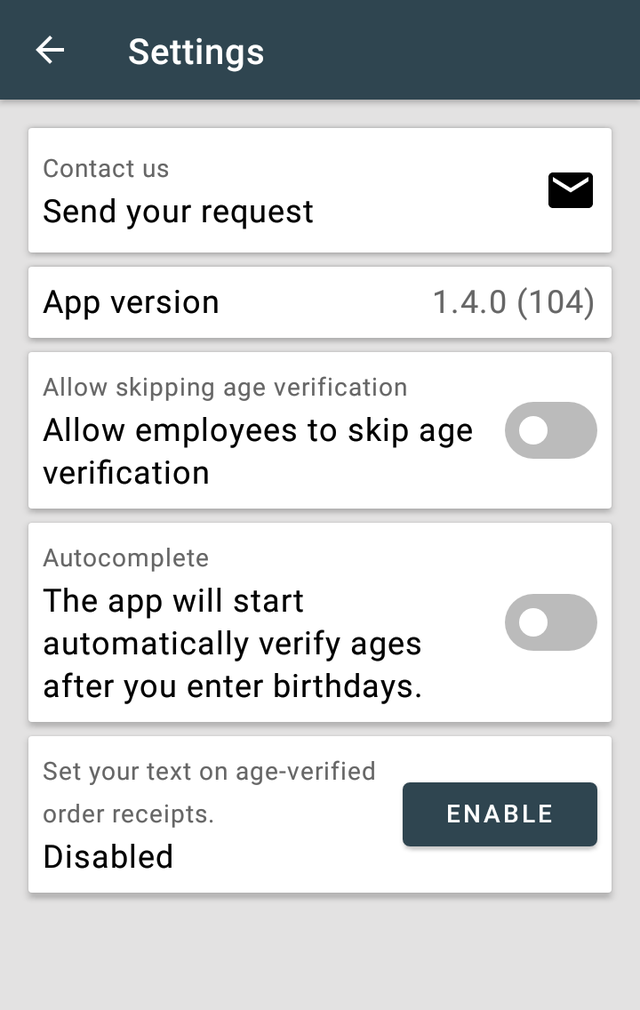
- In Settings, turn Allow employees to skip age verification off.
- Connect a 2D scanner and scan a licence at the prompt. The date of birth must fill in.
- Tell cashiers to scan the ID when the prompt opens, and to type the date only when the barcode cannot be read.
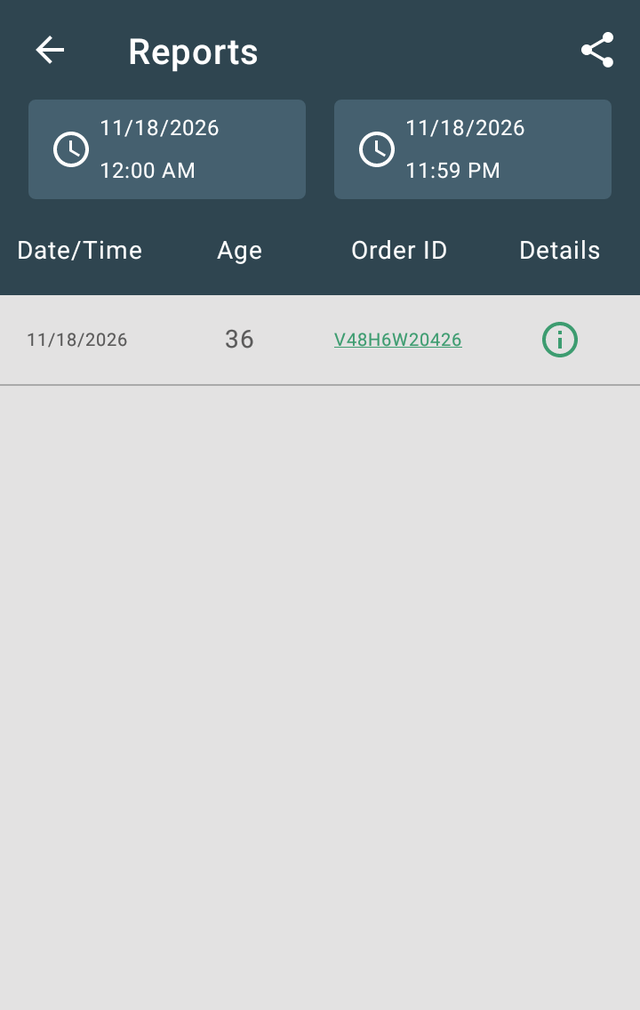
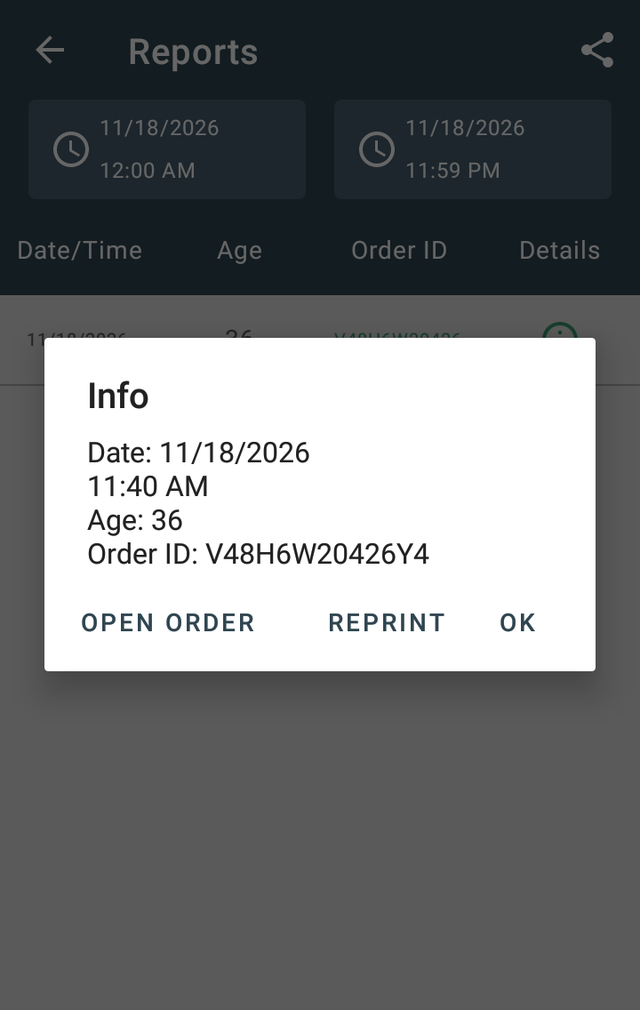
Reports has one line for each order that passed the check and was paid: Date/Time, Age and Order ID. A skipped check shows as Skipped. The report does not show whether the date was scanned or typed, and an underage result is not recorded. The share icon e-mails a link to the report as an Excel file. In the browser version (ageverify.payplaxe.com) you can also download the file.
Age Verify does not save the name, address, date of birth, licence or ID number, expiration date, photo or barcode of a scanned ID in its data on the Clover device, in the browser version or on PayPlaxe servers. On the Clover device it keeps the order ID and the customer's age until the next employee login or switch, so the same order is not asked twice. The report lines (order ID, age, date and time) are kept for your business on PayPlaxe servers. There is no setting for this, because the app does not keep ID data at any time.
The check runs when the item is added to the order. The payment screen does not check again. The app reads the date of birth. It does not check the expiration date or whether the ID is genuine. Looking at the ID and following your state's rules is still the cashier's job.
Back to Age Verify Download PDF Install on Clover App Market