
How it works
A reminder is a text plus a moment
You write the message and choose when it appears.
It only informs
A reminder never changes the order. It puts words in front of the person serving the customer.
Pause instead of delete
Any reminder can be stopped and started again, so a seasonal script stays available.
Stored centrally, loaded on each station
Reminders are kept with your merchant account, and each Clover station loads the list when the Reminders app is opened on it. Open the app once on every station after you add, edit, pause or delete a reminder — until then that station keeps the old list.
What it does
Three moments
On login, the first item added to the new order, or the payment screen opened.
Your own text
A sales script, an ID check, a packing rule. Whatever the staff need to see.
Several reminders
One for login and another for the payment screen. Each row is separate.
Pause
Stop a reminder for a while and switch it back on when the campaign returns.
Web version
reminders.payplaxe.com opens the same list, the same editor and the same settings in a browser, signed in with Login via Clover. It is the same app, not a separate product: the browser is where it is set up, with the same Clover account and nothing extra to buy. Reminders are never shown there — they appear on the Clover device — and each station loads the changes when the Reminders app is opened on it.
Price & installation
How to install
- Open the Clover App Market — on the device, or at clover.com/appmarket in your web dashboard.
- Find the app by name, or open its direct link from the button above.
- Tap Connect / Install and accept the permissions the app requests.
- The 30-day free trial starts automatically. The subscription then appears on your monthly Clover invoice.
- Open the app on the Clover device and sign in with a Manager or Admin employee account to configure it.
- To cancel later, uninstall the app from the App Market — the steps are right below.
How to cancel the subscription
Cancelling means uninstalling the app — there is no separate billing screen.
- Open the App Market — on the Clover device, or in the web dashboard.
- Open My Apps. Every app you pay for is listed there with its monthly fee.
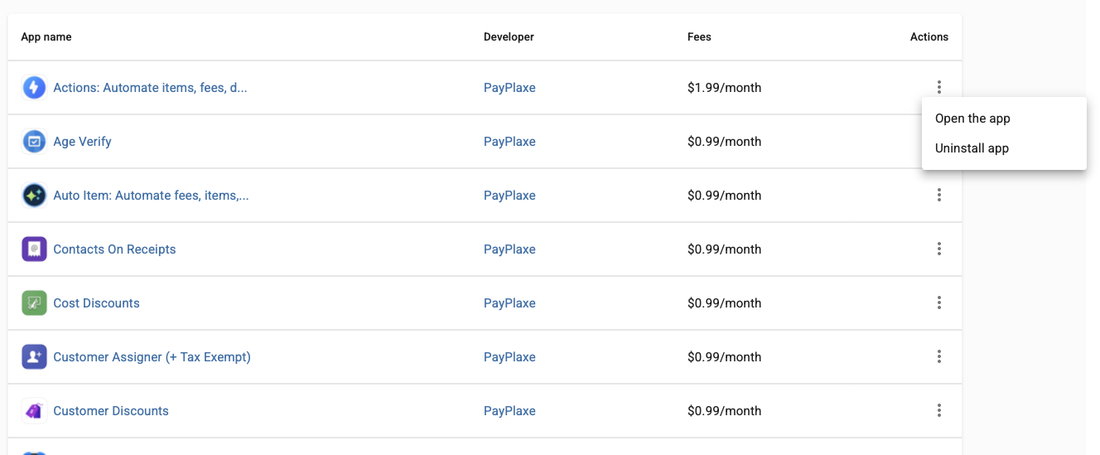
- Tap the ⋮ button on the app's row and choose Uninstall app.
- The app's own page works too: ⋮ next to the green Open the app button → Uninstall app.
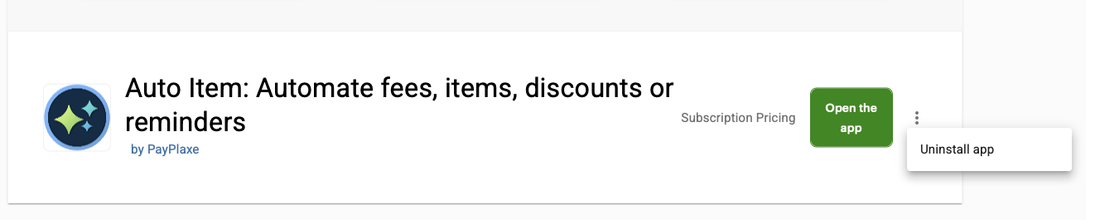
- Confirm. The subscription stops there and then — the app is off your next Clover invoice.
Install and cancel any time from the Clover App Market.
First setup
Do this once, in this order. It takes a few minutes and the app is then ready for the shift.
- Open Reminders; the list shows each reminder with its title and trigger.
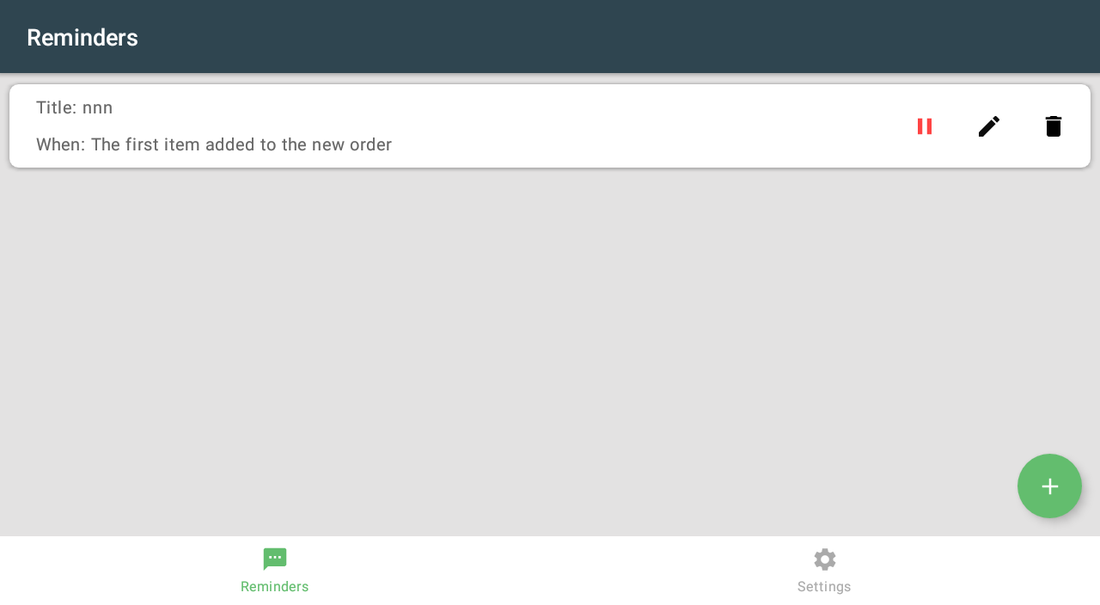
- Tap + to create one.
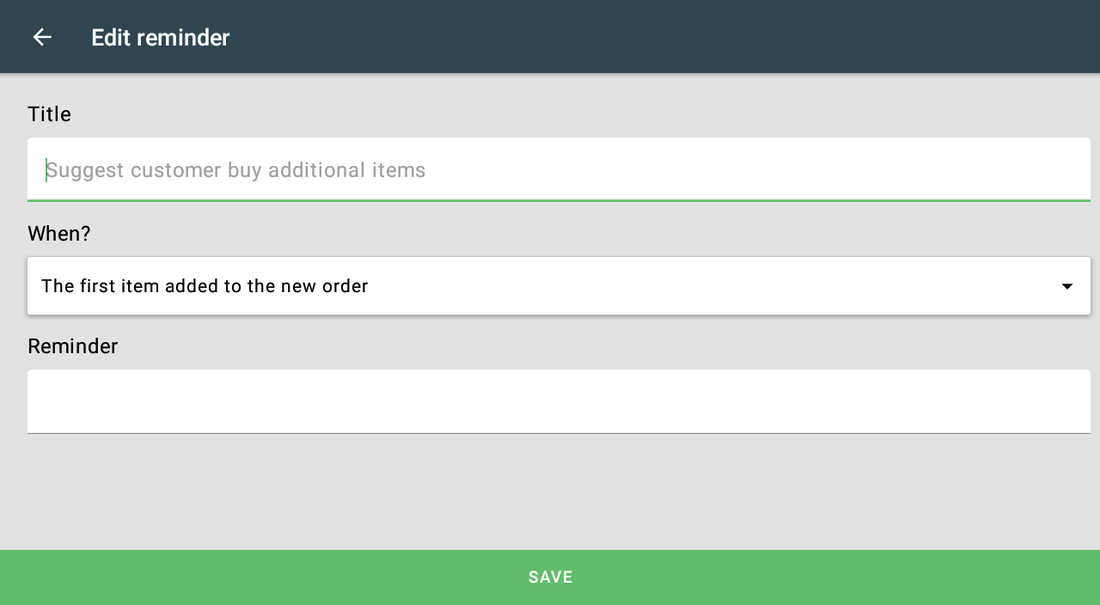
- Fill Title — staff read it as the heading of the message, shown as Reminder: 'your title'. Write it for the person serving the customer.
- Choose When?: The first item added to the new order · The payment screen opened · On login.
- Write the message in Reminder.
- Tap SAVE and run a test order to see the message appear at the moment you chose.
- Open Reminders once on every other Clover station so it loads the new reminder.
Setup scenarios
Each scenario is a complete configuration — follow the steps in order.
1Upsell prompt at the start of every order
The team should offer the add-on before the order is finished, not after.
- Open Reminders and tap +.
- In Title write the heading staff will see, e.g. Suggest a drink.
- Set When? to The first item added to the new order.
- In Reminder write the exact wording you want staff to use.
- Save — on this station the message appears as soon as the first item is scanned. Open Reminders once on the other stations too.
2Shift briefing at login
Today's promotion, a price change or a delivery arriving — everyone should see it when they start.
- Create a reminder titled Today.
- Set When? to On login.
- Write the briefing text and save.
- Update the text each morning — the reminder itself stays in place. Open the Reminders app once on each station afterwards so it picks up the new wording.
3Check at the payment screen
Loyalty cards, ID checks and bag charges are forgotten exactly at the payment step.
- Create a reminder and set When? to The payment screen opened.
- Write the check in imperative form, e.g. Ask for the loyalty card.
- Save and run a test sale on that station to see where the message appears.
- Pause the reminder from its row when the campaign is over, then open Reminders once on each station so it stops there too.
Reference
Screens and settings
Every screen of the app and what each setting does. (3)
Screens and settings
Every screen of the app and what each setting does. (3)
Reminders list
| Setting | What it does |
|---|---|
| Title / When | The reminder name and the moment it appears. |
| Pause icon | Stops the reminder without deleting it. Other stations keep showing it until the Reminders app is opened there. |
| Pencil / bin | Edit or delete. Delete asks to confirm and then removes the reminder for good — pause it instead if you may want it back. |
| + button | Creates a reminder. |
Reminder editor
| Setting | What it does |
|---|---|
| Title | The heading staff read above the message, shown as Reminder: 'your title'. Write it for the person serving the customer, not as an internal code. |
| When? | The first item added to the new order · The payment screen opened · On login. |
| Reminder | The exact text your staff will read. |
| SAVE | Stores the reminder. It works on the next order on this station; every other station loads it when the Reminders app is opened there. |
Settings
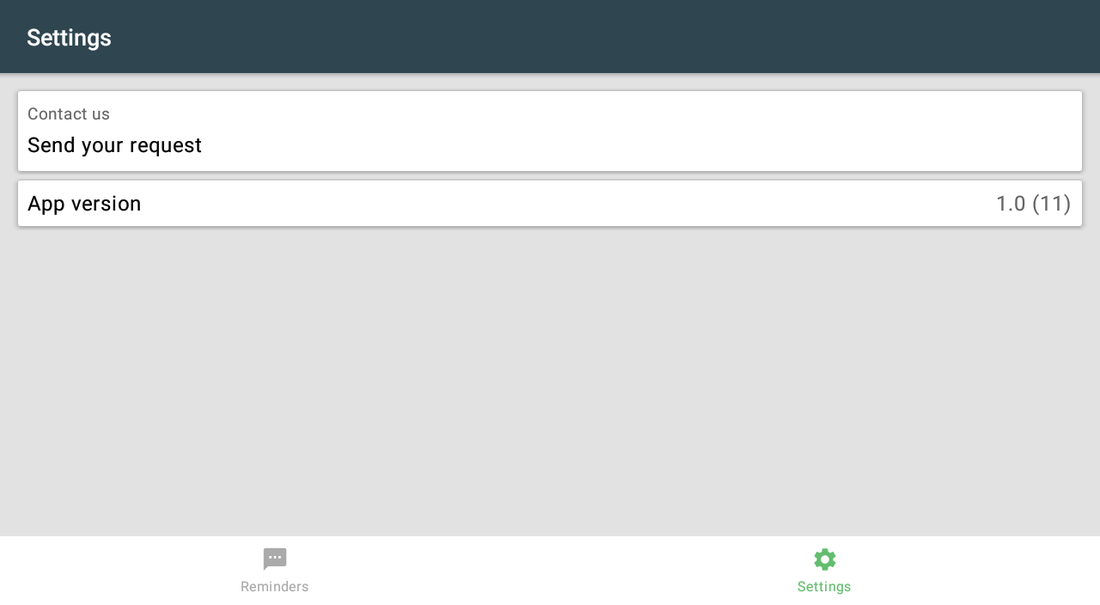
Deliberately small: in the Clover app there is nothing beyond support and the version. The same screen in the browser also shows your Merchant ID, which is read-only.
| Setting | What it does |
|---|---|
| Contact us · Send your request | Opens our contact card: the support e-mail, the WhatsApp/SMS number and a QR code with more contacts. Write to us from your own mail or messenger app. |
| App version | The installed version — quote it when you contact support. |
Screenshots taken from the running app on a Clover device. The apps’ interface language is English. Click a screenshot to enlarge.
Everyday use
What the cashier does after the app is configured.
- The reminder appears by itself at the chosen moment; read it and close it.
- Update the text of a standing reminder when the daily message changes.
- Pause a reminder when its campaign is over.
- After you add, edit or pause a reminder, open the Reminders app once on each station so it loads the change.
Troubleshooting
Symptom on the left, what to do on the right.
| Symptom | What to do |
|---|---|
| The reminder does not appear at payment. | Uncheck Automatically take payment on Connected Device in Clover Setup → Payments. |
| Nothing appears at all. | Check the pause icon on its row — the reminder may be paused. If it was created or changed somewhere else, open the Reminders app once on this station so it loads the list. |
| The message is too long for the screen. | Shorten the text; a reminder is read at a glance between customers. |
| It works on one station but not on another. | That station has not loaded the change yet. Open the Reminders app once on it: the list is read when that screen opens. |
| A payment option called Reminders appeared in Clover. | The app adds that custom tender the first time it is opened and keeps it enabled. It is a payment button: no app answers it, so tapping it at checkout closes the order under Reminders without processing card or cash. Tell staff to use the normal payment buttons. |
| The app's dialog never appears on the payment screen; Clover shows "Customer is choosing payment method". | Open the Clover Setup app → Payments and uncheck Automatically take payment on Connected Device, so payment is taken on the primary device. |
| Settings cannot be opened or changed. | Sign in with an employee whose Clover role is Manager or Admin. Some apps also have their own Restrict access switch that locks the configuration. |
| The app works erratically, or stops reacting after the device has been idle. | Turn off Battery Saver in the device's Android settings and keep the device online. |
| A change made on one device is not visible on another. | Settings sync through the cloud; give it a minute and make sure both devices have a network connection. |